MeDo

Generador de Tabla de Precios con IA.

Describe tus planes y deja que la IA haga el trabajo pesado. Desde nombres de niveles y listas de características hasta interruptores y planes recomendados resaltados — generado y listo para publicar.

Tabla de Precios
Tabla de Precios

Tu tabla de precios es lo último que lee un comprador antes de decidir

Una tabla de precios hace más que listar precios — enmarca el valor, gestiona objeciones y guía al visitante hacia el plan correcto. Una sección de precios desordenada o confusa genera parálisis de decisión y aleja a compradores calificados. Hacer bien el diseño, la jerarquía y el texto es una de las mejoras de mayor impacto que cualquier sitio SaaS o de producto puede hacer en su tasa de conversión.

6 plantillas

Plantillas de Tabla de Precios que puedes generar

Cada plantilla es un prompt real, no una captura de pantalla. Cópialo en cualquier editor de IA o ejecútalo en MeDo y obtén código React + Tailwind.

Three tierAcme

Three Cards With a Highlighted Plan

The default for a reason — three prices in one row is the most comparison a visitor will do without scrolling. It fails when all three cards look equal, because then the buyer has to decide instead of being told.

Create a three-tier pricing section with Starter, Growth and Scale as equal-width cards in one row. Raise the Growth card, give it a ring border and a Most Popular badge. Above the cards, a segmented monthly/yearly toggle that swaps the price figure in place and reveals a two-months-free chip when yearly is active; hold the card height constant so nothing reflows on switch. Each card carries a plan name, a one-line note on who it is for, the price with its per-seat per-month unit, a primary button, and six feature rows listed in the same order in every card so the eye can compare across instead of reading down. Collapse to one column on mobile with the highlighted plan first.

Prueba en MeDo
Comparison gridMega

Full Feature Comparison Matrix

For products where the upgrade reason is a specific limit rather than a vibe. The horizontal scroll on mobile is what kills these — render one plan per accordion instead.

Create a pricing comparison matrix: a header row of four plan columns and a left column of feature names grouped into labelled sections such as Core, Collaboration, Security and Support. Use a filled check for included, an em dash for absent, and a short value string wherever a plan has a numeric limit rather than a boolean. Pin the header row so plan names and CTAs stay visible while the reader scrolls the feature list, and highlight the recommended column its full height. Zebra-stripe rows to keep the eye on one line. On mobile, drop the matrix entirely and render one plan per collapsible panel rather than putting a wide table in a horizontal scroller.

Prueba en MeDo
Single planShipfast

One Plan, One Price Card

When there is nothing to compare, a row of three cards is theatre. One card removes the decision and makes the feature list read as a promise rather than a diff.

Create a single-plan pricing section: one centred card with a max width of about 32rem holding the plan name, a large price figure, a monthly/yearly toggle inside the card, and an everything-included feature list laid out in two columns so the card stays short enough to read without scrolling. Add a primary Get started button, a muted no-credit-card-required line directly beneath it, and a small text link to contact sales for volume pricing. Above the card, one headline naming exactly who the plan is for. Stack the feature columns and keep the toggle full-width on mobile.

Prueba en MeDo
Usage basedMeter

Volume Slider With a Live Total

Metered pricing only lands if the buyer can find their own number on it. A slider that recomputes the total as it moves answers the real question — what will this cost me — without a spreadsheet.

Create a usage-based pricing section: a range slider for monthly volume with tick labels at the tier boundaries, a live total that recomputes the price and the effective unit rate as the handle moves, and a plan name that changes as the volume crosses each threshold. Below the slider, a fixed list of what is included at every tier and one line on what happens on overage. Add a primary CTA plus a secondary Talk to sales link for volumes past the top of the range. Announce the computed total in an aria-live region and support arrow-key stepping, so keyboard and screen-reader users get the same feedback as a mouse drag.

Prueba en MeDo
Enterprise rowLedger

Two Self-Serve Cards Plus a Contact Band

Puts the no-price plan outside the card row, where it stops competing on price. An Enterprise card sitting next to two real numbers just reads as the expensive one.

Create a pricing section with two self-serve cards, Pro and Team, side by side with Team highlighted, followed by a full-width enterprise band beneath them. The band gets a tinted surface, a short heading, three inline value points covering SSO, audit logs and a named contact, and a Contact sales button where a price would be — so it never reads as a third card competing on price. Each card shows a monthly and yearly price with a per-seat unit, five feature rows in matching order, and a primary button. Stack all three blocks vertically on mobile with the band last.

Prueba en MeDo
Audience tabsSegment

Audience Tabs Over Shared Tiers

One pricing page serving individuals, teams and education without three URLs. Worth it only if the plans genuinely differ per audience — otherwise you have added a click to reach the same table.

Create a pricing section with audience tabs above the cards — Individuals, Teams and Education — where switching a tab swaps in a different set of plan names, prices and feature lists rather than filtering rows in place. Keep the monthly/yearly toggle on the same bar as the tabs so the two controls read as one control group, and preserve the toggle state across tab switches. Use real tab semantics with a tablist, arrow-key navigation and managed focus, and reflect the active tab in the URL so a link can point straight at the Teams view. Highlight exactly one plan inside each tab.

Prueba en MeDo

Cómo personalizar tu Tabla de Precios

Siempre resalta un plan recomendado

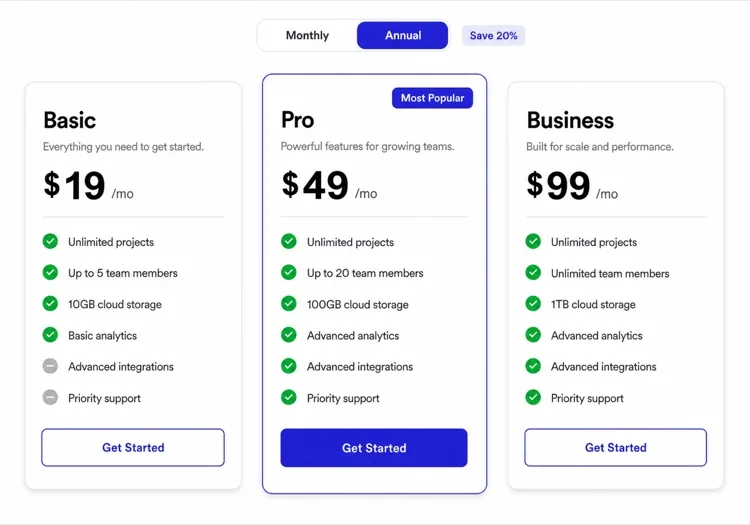
La sobrecarga de opciones mata las conversiones. Destacar visualmente un nivel como "Más Popular" o "Mejor Valor" con un borde de color, tarjeta elevada o badge reduce la carga cognitiva y dirige a los visitantes hacia el plan que mejor funciona para la mayoría de los clientes — generalmente tu nivel medio.

Usa un interruptor de facturación para mostrar ahorros anuales

Un interruptor mensual/anual con un porcentaje de descuento visible (ej. "Ahorra 20% anualmente") aumenta la adopción del plan anual sin ocultar precios. Posiciona el interruptor prominentemente sobre las tarjetas y configúralo por defecto en anual para anclar el valor percibido más alto.

Haz que las filas de características sean escaneables, no exhaustivas

Limita cada columna de nivel a 6-8 filas de las características más importantes para tus buyer personas. Usa marcas de verificación y X (o texto en gris) para características ausentes en lugar de omitir filas — la comparación visual es lo que impulsa la intención de actualización.

Acompaña cada botón CTA con un reductor de micro-compromiso

Frases cortas como "No se requiere tarjeta de crédito", "Cancela cuando quieras" o "Prueba gratuita de 14 días" colocadas directamente bajo el botón CTA principal eliminan la última duda antes de hacer clic en registrarse. Adapta el mensaje de tranquilidad al riesgo específico que tu audiencia tiene más probabilidades de sentir.

Quién usa el componente Tabla de Precios

Sitio de producto SaaS

Las tablas de precios SaaS típicamente incluyen 3 niveles, un interruptor mensual/anual, un plan medio resaltado, filas de comparación de características y un CTA de prueba gratuita — el formato que se ha convertido en el estándar de facto para software de suscripción.

API o herramienta para desarrolladores

Las tablas de precios de herramientas para desarrolladores suelen incluir un nivel basado en uso junto a planes fijos, mostrando límites de solicitudes o conteos de plazas por nivel, con una opción gratuita u open-source prominente para reducir la barrera para desarrolladores individuales.

Agencia o empresa de servicios

Las empresas de servicios usan tablas de precios para empaquetar entregables en niveles de alcance fijo — por ejemplo, Starter / Professional / Custom — con una lista clara de servicios incluidos por paquete y un CTA "Reservar una llamada" para el nivel superior.

Plataforma de e-learning o membresía

Los sitios de contenido y membresía usan tablas de precios para separar el acceso gratuito del contenido premium, a menudo con un único CTA de actualización y prueba social (contador de miembros o testimonio) embebida directamente en la tarjeta de la tabla.

Patrones de Tabla de Precios para distintos sitios web

El mismo componente tabla de precios, adaptado al tipo de sitio donde se publica.

01 / 06

SaaS Pricing Table

Three tiers, a yearly toggle, a highlighted middle plan and identical feature ordering across columns. The ordering is the part teams skip — if row four means something different in each card, the buyer cannot compare across and falls back to picking the cheapest.

Estilos y variantes de Tabla de Precios

Elige la variante que encaje con el resto de la página y genérala.

01 / 06

Highlighted Card Row

Three cards, one elevated with a ring and a badge. The elevation is doing real work: choice overload is the failure mode of a pricing section, and a visually recommended plan is the cheapest fix available.

Tabla de Precios en React, Next.js, Vue y Svelte

React, Next.js, Vue 3, SvelteKit, Astro o HTML puro: el mismo tabla de precios, seis formas de integrarlo.

01 / 06

React Pricing Table

Keep the plans in a data array and let the billing toggle be the only piece of state. Deriving the price from that one boolean is what stops the yearly and monthly copies of the table drifting apart.

src/components/PricingTable.tsx

const PLANS = [
  { name: 'Starter', monthly: 29, yearly: 290 },
  { name: 'Growth', monthly: 79, yearly: 790, featured: true },
]

export function PricingTable() {
  const [yearly, setYearly] = useState(false)
  return (
    <section>
      <BillingToggle value={yearly} onChange={setYearly} />
      {PLANS.map((p) => (
        <PlanCard key={p.name} plan={p} yearly={yearly} />
      ))}
    </section>
  )
}

Cómo añadir tu Tabla de Precios a un proyecto

Cuatro pasos, desde elegir una plantilla de tabla de precios hasta llevarlo a producción.

01~30s

Pick a Pricing Layout

Match the layout to what the buyer has to decide — three cards when plans differ by size, a comparison matrix when they differ by a specific limit, one card when there is nothing to compare.

02~10s

Copy the Prompt

Take the prompt into MeDo, or paste it into Lovable, Bolt, v0 or Cursor. Swap in your real plan names, prices and feature rows first, and keep the rows in the same order across every tier.

03~1min

Generate and Refine

You get React + Tailwind back with a live preview. Follow up in plain English — "default the toggle to yearly", "move Enterprise into a band below" — rather than editing class strings by hand.

04~2min

Wire the CTAs to Checkout

Point each plan button at its own checkout session or signup URL and keep the price figures in one data array, so a price change is one edit rather than three cards and a matrix.

Preguntas frecuentes sobre Tabla de Precios

¿Qué es un generador de tabla de precios con IA?

Un generador de tabla de precios con IA toma una descripción en lenguaje natural de tus niveles de precios, características y objetivos y produce un componente de tabla de precios completo y estilizado — incluyendo diseño, texto, comportamiento del interruptor y botones CTA — listo para insertar en tu página web. MeDo genera el componente completo con código listo para producción, no solo una plantilla.

¿Cómo creo una tabla de precios con IA?

Abre MeDo y describe tu estructura de precios: cuántos niveles, sus nombres y precios, las características clave por nivel y qué plan resaltar. Por ejemplo: "Crea una tabla de precios SaaS de 3 niveles con interruptor mensual/anual, resalta el plan medio como Más Popular y usa marcas de verificación verdes para las características incluidas." MeDo genera el componente; usa prompts de seguimiento para ajustar colores, texto o diseño.

¿Cuál es la mejor herramienta de IA para generar tablas de precios?

MeDo está diseñado específicamente para generar componentes de UI individuales desde prompts, incluyendo tablas de precios. A diferencia de las herramientas de IA de propósito general, MeDo entiende los patrones de conversión — planes resaltados, interacciones con interruptores, filas de comparación de características — por lo que el resultado sigue buenas prácticas de diseño reales en lugar de producir código de aspecto genérico.

¿Cuántos niveles de precios debe tener una tabla de precios SaaS?

Tres niveles es el punto óptimo probado para la mayoría de los productos SaaS: un nivel de entrada inferior para usuarios pequeños, un nivel medio resaltado para la mayoría de tus clientes objetivo y un nivel superior o opción Enterprise personalizada para cuentas de alto volumen. Menos de tres da a los compradores poco para comparar; más de cuatro genera parálisis de decisión.

¿Debería usar un interruptor de facturación mensual/anual en mi página de precios?

Sí — un interruptor de facturación es una de las formas más simples de aumentar la adopción del plan anual. Muestra el descuento anual prominentemente (ej. "Ahorra 20%") y configura el interruptor por defecto en precios anuales para anclar el valor más alto. El interruptor también señala transparencia de precios, lo que genera confianza con compradores indecisos.

¿Puede la IA generar el texto para una tabla de precios además del código?

Sí. MeDo genera tanto el componente visual como el texto dentro de él — nombres de niveles, puntos de características, etiquetas de botones CTA y señales de confianza. Puedes indicarle tu producto, audiencia y propuestas de valor, y escribirá texto enfocado en conversión junto al código estilizado. Los prompts de seguimiento te permiten ajustar el tono, reescribir niveles específicos o probar titulares alternativos para pruebas A/B.