
MeDo

AI 검색 바 생성기.

사람들이 무엇을 검색하는지 설명하면 MeDo가 위젯 전체를 생성합니다 — 디바운스된 쿼리, 타입어헤드 드롭다운, 방향키 내비게이션, 최근 검색, 로딩 및 결과 없음 상태, 그리고 포커스를 위한 cmd+K 단축키까지.

검색 바
검색 바

검색 바는 시각적 포커스와 DOM 포커스가 어긋나는 유일한 입력입니다

페이지의 다른 모든 요소는 포커스와 하이라이트가 같은 위치에 머무릅니다. 타입어헤드는 그럴 수 없습니다. 계속 입력할 수 있도록 캐럿은 텍스트 필드에 남아 있어야 하고, 그 사이 하이라이트는 추천 목록을 따라 내려갑니다. 올바른 패턴은 aria-activedescendant로, 입력 필드가 DOM 포커스를 유지하면서 id로 활성 옵션을 가리킵니다. 대신 실제 포커스를 목록으로 옮기는 구현은 입력을 즉시 망가뜨리며, 그래서 직접 만든 검색 바가 마우스로는 작동하다가 키보드에서 무너집니다. 필드와 목록을 하나의 위젯으로 생성하면 그 관계가 버그 리포트 후 땜질되는 대신 처음부터 연결됩니다.

템플릿 6개

생성할 수 있는 검색 바 템플릿

모든 템플릿은 스크린샷이 아니라 실제 프롬프트입니다. 어떤 AI 에디터에든 붙여넣거나 MeDo에서 실행해 React + Tailwind 코드를 그대로 받으세요.

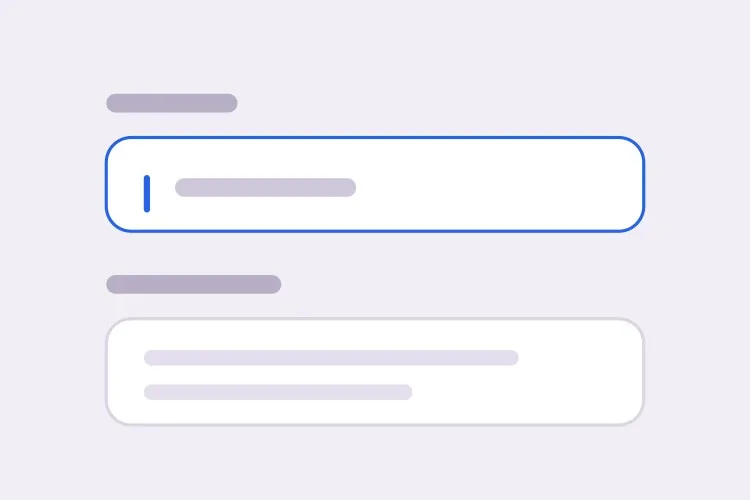
BasicInput + Clear

Plain Search Field With Submit

No dropdown, no fetch — just a field that submits to a results page. Start here when the corpus is large enough that suggestions would be guesses rather than shortcuts.

Create a search field: a 40px-tall rounded input inside a real form with role="search", type="search" on the input, enterkeyhint="search" for mobile keyboards, and a visible label or aria-label since a magnifier icon is not an accessible name. Put a 16px magnifier on the left with aria-hidden, and a clear button on the right that appears only once there is text, is a real button with an accessible label, and returns focus to the input after clearing. Enter submits the raw query through the form so search still works with JavaScript disabled. Escape clears the field when it has text. Show a focus-visible ring on the wrapper, not the bare input, so the icon and field read as one control.

MeDo에서 시도하기
ComboboxTypeahead

Debounced Suggestions Listbox

The full combobox: debounce, listbox, aria-activedescendant. The critical rule is that DOM focus never leaves the input, or typing stops working the moment someone presses Arrow Down.

Create a typeahead search bar using the ARIA combobox pattern: aria-expanded, aria-controls and aria-activedescendant on the input, role="listbox" on the panel, role="option" with a unique id on each row. DOM focus must stay in the text field at all times — move the visual highlight by updating aria-activedescendant, never by focusing an option, or typing breaks. Debounce queries at 250ms and cancel in-flight requests so a slow earlier response cannot overwrite a newer one. Arrow Down and Up move the active option and wrap at the ends, Home and End jump to the first and last, Enter selects the active option or submits the raw query when none is active, Escape closes the panel and restores the typed text, and Tab closes and moves on rather than walking the options.

MeDo에서 시도하기
cmd+KCommand Palette

Modal Search Overlay

Search as primary navigation, opened from anywhere with cmd+K. It is a modal dialog, which means a focus trap and focus restoration — the part most palette clones skip.

Create a command-palette search overlay opened by cmd+K and ctrl+K: a centered dialog with a backdrop, using the native dialog element or role="dialog" with aria-modal="true". Trap focus inside it, place initial focus in the input, close on Escape and backdrop click, and return focus to the element that was focused before opening. Ignore the shortcut while the user is typing in another input or a contenteditable region. Inside, run the ARIA combobox pattern with aria-activedescendant, group results under headed sections such as Pages, Docs and Actions, and let Arrow Down and Up move across group boundaries while skipping the group headings. Show a visible cmd+K hint in the trigger and keyboard hints in the dialog footer.

MeDo에서 시도하기
StatesRecent + Empty

Search With Recent Queries and No-Results

Three panels, not one: recent searches on an empty query, skeleton rows in flight, a no-results row with a fallback. Leave any out and the dropdown flickers blank between keystrokes.

Create a search bar that renders three distinct dropdown states rather than one panel that empties. On an empty query, show up to five recent searches from localStorage under a Recent heading, each with a small remove button and a Clear all action. While a request is in flight, keep the previous results visible and overlay three skeleton rows, and swap the magnifier for an inline spinner rather than blanking the panel. On zero matches, show a no-results row naming the query plus a "Search everything" fallback action that submits the raw text. Announce the outcome in an aria-live="polite" region — "8 results available" or "No results" — debounced so intermediate counts are not read out. Arrow keys, Enter and Escape behave identically in all three states.

MeDo에서 시도하기
FiltersScoped Search

Search With Scope Chips and Filters

A scope chip inside the field narrows the query before it runs. Make Backspace on an empty query remove the chip — anything else and people are hunting for a tiny × with the mouse.

Create a scoped search bar: removable scope chips render inside the input wrapper to the left of the text caret, each a button with an accessible label such as "Remove filter: Invoices". Pressing Backspace with an empty query removes the last chip rather than doing nothing, and typing a known prefix followed by a colon converts it into a chip. Keep the chips out of the input value itself and send them as separate query parameters. Below the field, render filter pills that are toggle buttons with aria-pressed, and re-run the debounced query on every change. Preserve the caret position when a chip is added, keep the ARIA combobox wiring for the suggestion listbox, and reflect the active scope in the aria-live result-count announcement.

MeDo에서 시도하기
Media rowsRich Results

Suggestions With Thumbnails and Prices

Product and media rows where each suggestion carries an image, title and price. Reserve the thumbnail box explicitly, or every keystroke reflows the panel as images resolve.

Create a search bar with rich suggestion rows: each row is a role="option" containing a 40px thumbnail with explicit width and height attributes so the panel does not reflow as images load, a title with the matched substring bolded, and a secondary line with price or category. Because the row holds several elements, give each option an aria-label describing the whole row so a screen reader hears one coherent option rather than fragments. Cap the panel at 320px with internal scroll, and scroll the active option into view with block nearest as aria-activedescendant moves. Keep the last row a "See all results for <query>" action that submits the raw text. Highlight matches by wrapping the substring, never by injecting HTML from the response.

MeDo에서 시도하기

검색 바 커스터마이즈 방법

디바운스 간격을 명시하세요

"입력에 디바운스를 적용해"가 아니라 "250ms로 디바운스해"라고 말하세요. 약 150ms 아래에서는 키 입력마다 요청이 발생하고, 약 400ms를 넘으면 드롭다운이 고장난 것처럼 느껴집니다. 느린 이전 응답이 최신 응답을 덮어쓰지 않도록 취소 처리와 함께 요청하세요.

세 가지 빈 상태를 각각 설명하세요

빈 쿼리, 진행 중인 쿼리, 결과 0개는 서로 다른 세 화면입니다. 첫 번째에는 최근 검색, 두 번째에는 스피너나 스켈레톤 행, 세 번째에는 결과 없음 행과 대체 액션을 요청하세요. 하나라도 빠지면 빈 화면이 깜빡이는 패널이 됩니다.

Enter가 제출인지 선택인지 밝히세요

추천 항목이 하이라이트된 상태에서 Enter는 그것을 선택해야 하고, 아무것도 하이라이트되지 않았다면 Enter는 원본 쿼리를 결과 페이지로 제출해야 합니다. 두 분기를 모두 명시하고, JavaScript 없이도 제출 경로가 작동하도록 role="search"를 가진 실제 form을 요청하세요.

결과 개수 안내를 요청하세요

보이는 사용자는 목록이 늘어나는 것을 봅니다. 스크린 리더 사용자에게는 "8개의 결과가 있습니다"처럼 읽어주는 aria-live="polite" 영역이 필요합니다. 라이브 영역을 명시적으로 요청하고, 중간 개수를 매번 읽지 않도록 이 영역에도 디바운스를 적용해 달라고 하세요.

검색 바 컴포넌트를 사용하는 사람

문서 사이트

페이지 위로 열리는 cmd+K 검색 바. 결과를 섹션별로 묶고, 각 제목 아래 일치한 줄을 보여주며, 최근 다섯 개의 쿼리를 보관해 어렴풋이 기억나는 페이지로 되돌아갈 수 있게 합니다.

이커머스 스토어

행마다 썸네일, 이름, 가격이 있는 상품 추천, 그 위의 카테고리 바로가기, 그리고 맨 아래에 원본 쿼리를 전체 결과 페이지로 제출하는 "...의 모든 결과 보기" 행.

대시보드 또는 관리 도구

고객, 청구서, 설정을 한꺼번에 검색하는 하나의 필드. 결과는 유형별로 그룹화되고, 입력 필드 안의 범위 칩으로 입력 전에 단일 엔티티로 좁힐 수 있습니다.

콘텐츠 또는 미디어 라이브러리

옆에 필터 필이 놓인 넓은 검색 바, 쿼리 실행 중의 스켈레톤 행, 그리고 빈 패널을 보여주는 대신 철자 수정을 제안하는 결과 없음 상태.

웹사이트 유형별 검색 바 패턴

같은 검색 바 컴포넌트를 게시되는 사이트 유형에 맞춰 조정합니다.

01 / 06

Documentation Search

A cmd+K palette that groups hits by section and shows the matching line under each title, since a page title alone rarely tells a reader whether the answer is on it. Keep the last five queries — docs search is mostly people returning to a page they half remember.

검색 바 스타일과 변형

페이지의 나머지 부분과 어울리는 변형을 골라 바로 생성하세요.

01 / 06

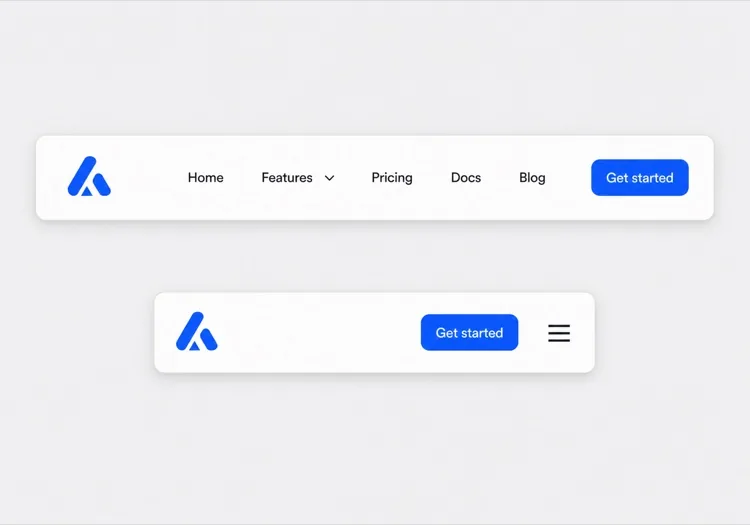
Inline Field Search

A permanent bordered input in the header or page body. The most discoverable option and the only one that works without JavaScript, since a real form with role="search" submits on Enter regardless. Give the wrapper the focus ring so the icon and field read as one control.
React, Next.js, Vue, Svelte에서의 검색 바

React, Next.js, Vue 3, SvelteKit, Astro 또는 순수 HTML — 같은 검색 바을 여섯 가지 방식으로 넣을 수 있습니다.

01 / 06

React Search Bar

Track the active index as a number and derive aria-activedescendant from it — that is the entire highlight mechanism, with no focus moves. Abort the previous fetch in the effect cleanup so a slow response cannot land after a newer one.

src/components/SearchBar.tsx

const [active, setActive] = useState(-1)
const debounced = useDebounce(query, 250)

<input
  type="search"
  role="combobox"
  aria-expanded={open}
  aria-controls="search-listbox"
  aria-activedescendant={active >= 0 ? `opt-${active}` : undefined}
  onKeyDown={onArrowKeys}
/>

검색 바을 프로젝트에 추가하는 방법

검색 바 템플릿을 고르고 프로덕션에 배포하기까지 네 단계.

01~30s

Pick a Search Pattern

Decide whether you need suggestions at all. A plain field posting to a results page is often the honest answer; reach for the typeahead or the cmd+K palette only when search is a primary navigation path.

02~10s

Copy the Prompt

Take the prompt into MeDo, Lovable, Bolt, v0 or Cursor, then set two numbers: the debounce interval and how many suggestions the panel shows. Name what is being searched too, since that decides how a result row is shaped.

03~1min

Generate and Refine

You get React + Tailwind back with a live preview. Follow up in plain English — "add recent searches", "group results by type", "announce the result count politely" — rather than rewriting the keydown handler.

04~2min

Connect Your Index and Ship

Point the query at your real endpoint, then test with the keyboard only: type, Arrow Down, Enter, Escape. If typing stops working after Arrow Down, focus was moved into the list and the highlight needs to go back to aria-activedescendant.

검색 바에 대한 자주 묻는 질문

AI로 검색 바를 생성하는 방법은?

무엇을 검색하는지, 추천은 어디에서 오는지, 어떤 상태가 필요한지(최근 검색, 로딩, 결과 없음)를 설명하세요. MeDo는 입력 필드, 추천 드롭다운, 디바운스된 쿼리 처리, 키보드 바인딩을 하나의 컴포넌트로 생성합니다. 나중에 직접 연결해야 하는 맨 텍스트 필드가 아닙니다.

검색 바와 자동완성의 차이는 무엇인가요?

검색 바는 자유 텍스트 쿼리를 제출하고 추천을 바로가기로 취급하므로, 일치 항목이 없는 내용을 입력해도 여전히 유효합니다. 자동완성은 값을 목록으로 제한하므로 옵션을 선택했을 때만 값이 확정됩니다. 이 차이는 마크업을 바꿉니다. 검색 바는 role="search"인 form 안에 들어가고, 제한된 자동완성은 폼 값에 바인딩된 콤보박스입니다.

AI가 접근성 있는 검색 바를 생성할 수 있나요?

네, 패턴을 이름으로 요청하면 가능합니다. MeDo는 입력 필드에 aria-expanded, aria-controls, aria-activedescendant, 패널에 role="listbox"와 role="option", 결과 개수를 위한 polite 라이브 영역을 갖춘 ARIA 콤보박스 패턴을 구현합니다. 포커스는 항상 텍스트 필드에 머물며, 그것이 입력과 방향키가 함께 작동하도록 만듭니다.

검색 드롭다운에서 키보드 내비게이션은 어떻게 작동해야 하나요?

아래 방향키는 첫 추천 항목으로 이동해 목록을 따라 내려가고, 위 방향키는 되돌아가며 원본 쿼리로 포커스를 되돌릴 수 있어야 하며, Enter는 하이라이트된 항목을 선택하고 Escape는 패널을 닫으면서 사용자가 입력한 내용을 복원합니다. 긴 목록에서는 Home과 End도 유용한 추가 기능입니다. Tab은 옵션을 훑고 지나가는 대신 패널을 닫고 다음으로 이동해야 합니다.

입력 필드에 type="search"를 사용해야 하나요?

네. 일부 플랫폼에서 브라우저 기본 지우기 기능을 제공하고, 보조 기술에 의도를 알리며, 모바일 키보드의 enterkeyhint="search"와 잘 맞습니다. 스크립트가 실패해도 쿼리가 제출되도록 role="search"를 가진 실제 form으로 감싸고, 돋보기 아이콘만으로는 접근성 있는 이름이 되지 않으므로 입력 필드에 레이블이나 aria-label을 부여하세요.

검색 바에 cmd+K 단축키가 필요한가요?

문서, 대시보드, 개발자 도구처럼 검색이 주요 내비게이션 경로인 곳에서는 도움이 됩니다. cmd+K와 ctrl+K를 모두 바인딩하고, 사용자가 다른 입력 필드에 입력 중일 때는 단축키를 무시하며, 발견하기 쉽도록 필드 안에 힌트를 표시하세요. MeDo 프롬프트에 언급하면 리스너와 보이는 힌트가 함께 생성됩니다.