
MeDo

KI-Suchleisten-Generator.

Beschreiben Sie, wonach Menschen suchen, und MeDo generiert das komplette Widget — entprellte Abfragen, ein Typeahead-Dropdown, Navigation mit Pfeiltasten, letzte Suchanfragen, Lade- und Keine-Ergebnisse-Zustände sowie ein cmd+K-Kürzel zum Fokussieren.

Suchleiste
Suchleiste

Die Suchleiste ist die einzige Eingabe, bei der visueller Fokus und DOM-Fokus auseinandergehen

Überall sonst auf einer Seite bleiben Fokus und Hervorhebung am selben Ort. Ein Typeahead kann das nicht: Der Cursor muss im Textfeld bleiben, damit man weitertippen kann, während die Hervorhebung die Vorschlagsliste hinabwandert. Das korrekte Muster ist aria-activedescendant, bei dem das Eingabefeld den DOM-Fokus behält und per id auf die aktive Option zeigt. Implementierungen, die stattdessen den echten Fokus in die Liste verschieben, brechen das Tippen sofort — deshalb funktionieren so viele selbstgebaute Suchleisten mit der Maus und scheitern mit der Tastatur. Feld und Liste als ein Widget zu generieren bedeutet, dass diese Beziehung von Anfang an verdrahtet ist und nicht erst nach einem Bugreport nachgeflickt wird.

6 Vorlagen

Suchleiste-Vorlagen, die Sie generieren können

Jede Vorlage ist ein echter Prompt, kein Screenshot. Kopieren Sie ihn in einen KI-Editor oder führen Sie ihn in MeDo aus und erhalten Sie React- und Tailwind-Code zurück.

BasicInput + Clear

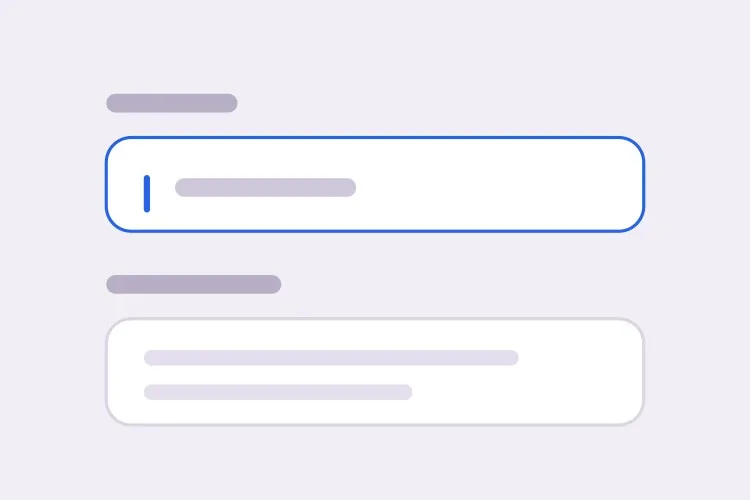
Plain Search Field With Submit

No dropdown, no fetch — just a field that submits to a results page. Start here when the corpus is large enough that suggestions would be guesses rather than shortcuts.

Create a search field: a 40px-tall rounded input inside a real form with role="search", type="search" on the input, enterkeyhint="search" for mobile keyboards, and a visible label or aria-label since a magnifier icon is not an accessible name. Put a 16px magnifier on the left with aria-hidden, and a clear button on the right that appears only once there is text, is a real button with an accessible label, and returns focus to the input after clearing. Enter submits the raw query through the form so search still works with JavaScript disabled. Escape clears the field when it has text. Show a focus-visible ring on the wrapper, not the bare input, so the icon and field read as one control.

In MeDo testen
ComboboxTypeahead

Debounced Suggestions Listbox

The full combobox: debounce, listbox, aria-activedescendant. The critical rule is that DOM focus never leaves the input, or typing stops working the moment someone presses Arrow Down.

Create a typeahead search bar using the ARIA combobox pattern: aria-expanded, aria-controls and aria-activedescendant on the input, role="listbox" on the panel, role="option" with a unique id on each row. DOM focus must stay in the text field at all times — move the visual highlight by updating aria-activedescendant, never by focusing an option, or typing breaks. Debounce queries at 250ms and cancel in-flight requests so a slow earlier response cannot overwrite a newer one. Arrow Down and Up move the active option and wrap at the ends, Home and End jump to the first and last, Enter selects the active option or submits the raw query when none is active, Escape closes the panel and restores the typed text, and Tab closes and moves on rather than walking the options.

In MeDo testen
cmd+KCommand Palette

Modal Search Overlay

Search as primary navigation, opened from anywhere with cmd+K. It is a modal dialog, which means a focus trap and focus restoration — the part most palette clones skip.

Create a command-palette search overlay opened by cmd+K and ctrl+K: a centered dialog with a backdrop, using the native dialog element or role="dialog" with aria-modal="true". Trap focus inside it, place initial focus in the input, close on Escape and backdrop click, and return focus to the element that was focused before opening. Ignore the shortcut while the user is typing in another input or a contenteditable region. Inside, run the ARIA combobox pattern with aria-activedescendant, group results under headed sections such as Pages, Docs and Actions, and let Arrow Down and Up move across group boundaries while skipping the group headings. Show a visible cmd+K hint in the trigger and keyboard hints in the dialog footer.

In MeDo testen
StatesRecent + Empty

Search With Recent Queries and No-Results

Three panels, not one: recent searches on an empty query, skeleton rows in flight, a no-results row with a fallback. Leave any out and the dropdown flickers blank between keystrokes.

Create a search bar that renders three distinct dropdown states rather than one panel that empties. On an empty query, show up to five recent searches from localStorage under a Recent heading, each with a small remove button and a Clear all action. While a request is in flight, keep the previous results visible and overlay three skeleton rows, and swap the magnifier for an inline spinner rather than blanking the panel. On zero matches, show a no-results row naming the query plus a "Search everything" fallback action that submits the raw text. Announce the outcome in an aria-live="polite" region — "8 results available" or "No results" — debounced so intermediate counts are not read out. Arrow keys, Enter and Escape behave identically in all three states.

In MeDo testen
FiltersScoped Search

Search With Scope Chips and Filters

A scope chip inside the field narrows the query before it runs. Make Backspace on an empty query remove the chip — anything else and people are hunting for a tiny × with the mouse.

Create a scoped search bar: removable scope chips render inside the input wrapper to the left of the text caret, each a button with an accessible label such as "Remove filter: Invoices". Pressing Backspace with an empty query removes the last chip rather than doing nothing, and typing a known prefix followed by a colon converts it into a chip. Keep the chips out of the input value itself and send them as separate query parameters. Below the field, render filter pills that are toggle buttons with aria-pressed, and re-run the debounced query on every change. Preserve the caret position when a chip is added, keep the ARIA combobox wiring for the suggestion listbox, and reflect the active scope in the aria-live result-count announcement.

In MeDo testen
Media rowsRich Results

Suggestions With Thumbnails and Prices

Product and media rows where each suggestion carries an image, title and price. Reserve the thumbnail box explicitly, or every keystroke reflows the panel as images resolve.

Create a search bar with rich suggestion rows: each row is a role="option" containing a 40px thumbnail with explicit width and height attributes so the panel does not reflow as images load, a title with the matched substring bolded, and a secondary line with price or category. Because the row holds several elements, give each option an aria-label describing the whole row so a screen reader hears one coherent option rather than fragments. Cap the panel at 320px with internal scroll, and scroll the active option into view with block nearest as aria-activedescendant moves. Keep the last row a "See all results for <query>" action that submits the raw text. Highlight matches by wrapping the substring, never by injecting HTML from the response.

In MeDo testen

So passen Sie Ihre Suchleiste an

Benennen Sie das Entprell-Intervall

Sagen Sie "entprellen bei 250ms" statt "das Eingabefeld entprellen". Unter etwa 150ms senden Sie eine Anfrage pro Tastenanschlag; jenseits von rund 400ms wirkt das Dropdown kaputt. Kombinieren Sie es mit Abbruchlogik, damit eine langsame frühere Antwort keine neuere überschreiben kann.

Beschreiben Sie alle drei Leerzustände getrennt

Leere Anfrage, laufende Anfrage und null Ergebnisse sind drei verschiedene Ansichten. Fordern Sie für die erste letzte Suchanfragen, für die zweite einen Spinner oder Skeleton-Zeilen und für die dritte eine Keine-Ergebnisse-Zeile mit Fallback-Aktion. Lassen Sie eine davon weg, erhalten Sie ein Panel, das leer flackert.

Legen Sie fest, ob Enter absendet oder auswählt

Ist ein Vorschlag hervorgehoben, sollte Enter ihn auswählen; ist nichts hervorgehoben, sollte Enter die rohe Anfrage an eine Ergebnisseite senden. Buchstabieren Sie beide Zweige aus und fordern Sie ein echtes Formular mit role="search", damit der Absendepfad ohne JavaScript funktioniert.

Fordern Sie die Ansage der Trefferzahl

Sehende Nutzer sehen die Liste wachsen. Screenreader-Nutzer brauchen einen aria-live="polite"-Bereich, der etwa "8 Ergebnisse verfügbar" sagt. Fordern Sie den Live-Bereich explizit und bitten Sie darum, dass er ebenfalls entprellt wird, damit nicht jeder Zwischenstand vorgelesen wird.

Wer die Suchleiste-Komponente nutzt

Dokumentationsseite

Eine cmd+K-Suchleiste, die sich über der Seite öffnet, Treffer nach Abschnitt gruppiert, die passende Zeile unter jedem Titel zeigt und die letzten fünf Anfragen behält, damit man zu einer halb erinnerten Seite zurückspringen kann.

Online-Shop

Produktvorschläge mit Thumbnail, Name und Preis pro Zeile, Kategorie-Shortcuts darüber und eine Zeile "Alle Ergebnisse für ... anzeigen" am Ende, die die rohe Anfrage an die vollständige Ergebnisseite sendet.

Dashboard oder Admin-Tool

Ein Feld, das über Kunden, Rechnungen und Einstellungen hinweg sucht, mit nach Typ gruppierten Ergebnissen und einem Scope-Chip im Eingabefeld, damit man vor dem Tippen auf eine einzelne Entität eingrenzen kann.

Inhalts- oder Medienbibliothek

Eine breite Suchleiste mit Filter-Pills daneben, Skeleton-Zeilen während die Anfrage läuft und ein Keine-Ergebnisse-Zustand, der Schreibkorrekturen vorschlägt statt ein leeres Panel zu zeigen.

Suchleiste-Muster für verschiedene Websites

Dieselbe suchleiste-Komponente, abgestimmt auf die Art der Website, auf der sie läuft.

01 / 06

Documentation Search

A cmd+K palette that groups hits by section and shows the matching line under each title, since a page title alone rarely tells a reader whether the answer is on it. Keep the last five queries — docs search is mostly people returning to a page they half remember.

Suchleiste-Stile und -Varianten

Wählen Sie die Variante, die zum Rest der Seite passt, und generieren Sie sie.

01 / 06

Inline Field Search

A permanent bordered input in the header or page body. The most discoverable option and the only one that works without JavaScript, since a real form with role="search" submits on Enter regardless. Give the wrapper the focus ring so the icon and field read as one control.
Suchleiste in React, Next.js, Vue und Svelte

React, Next.js, Vue 3, SvelteKit, Astro oder reines HTML — dieselbe suchleiste, sechs Wege zur Einbindung.

01 / 06

React Search Bar

Track the active index as a number and derive aria-activedescendant from it — that is the entire highlight mechanism, with no focus moves. Abort the previous fetch in the effect cleanup so a slow response cannot land after a newer one.

src/components/SearchBar.tsx

const [active, setActive] = useState(-1)
const debounced = useDebounce(query, 250)

<input
  type="search"
  role="combobox"
  aria-expanded={open}
  aria-controls="search-listbox"
  aria-activedescendant={active >= 0 ? `opt-${active}` : undefined}
  onKeyDown={onArrowKeys}
/>

So fügen Sie Ihre Suchleiste einem Projekt hinzu

Vier Schritte, von der Auswahl einer suchleiste-Vorlage bis zum Einsatz in der Produktion.

01~30s

Pick a Search Pattern

Decide whether you need suggestions at all. A plain field posting to a results page is often the honest answer; reach for the typeahead or the cmd+K palette only when search is a primary navigation path.

02~10s

Copy the Prompt

Take the prompt into MeDo, Lovable, Bolt, v0 or Cursor, then set two numbers: the debounce interval and how many suggestions the panel shows. Name what is being searched too, since that decides how a result row is shaped.

03~1min

Generate and Refine

You get React + Tailwind back with a live preview. Follow up in plain English — "add recent searches", "group results by type", "announce the result count politely" — rather than rewriting the keydown handler.

04~2min

Connect Your Index and Ship

Point the query at your real endpoint, then test with the keyboard only: type, Arrow Down, Enter, Escape. If typing stops working after Arrow Down, focus was moved into the list and the highlight needs to go back to aria-activedescendant.

Häufige Fragen zu Suchleiste

Wie generiere ich eine Suchleiste mit KI?

Beschreiben Sie, wonach gesucht wird, woher die Vorschläge kommen und welche Zustände Sie brauchen — letzte Suchanfragen, Laden, keine Ergebnisse. MeDo generiert das Eingabefeld, das Vorschlags-Dropdown, die entprellte Abfragebehandlung und die Tastaturbelegungen als eine Komponente statt eines nackten Textfelds, das Sie danach selbst verdrahten müssen.

Was ist der Unterschied zwischen einer Suchleiste und einem Autocomplete?

Eine Suchleiste sendet eine freie Textanfrage und behandelt Vorschläge als Abkürzungen, sodass eine Eingabe ohne Treffer trotzdem gültig ist. Ein Autocomplete beschränkt den Wert auf eine Liste, sodass die Eingabe nur beim Auswählen einer Option übernommen wird. Der Unterschied verändert das Markup: Eine Suchleiste gehört in ein Formular mit role="search", während ein beschränktes Autocomplete eine Combobox ist, die an einen Formularwert gebunden ist.

Kann KI eine barrierefreie Suchleiste generieren?

Ja, wenn Sie das Muster beim Namen nennen. MeDo implementiert das ARIA-Combobox-Muster mit aria-expanded, aria-controls und aria-activedescendant am Eingabefeld, role="listbox" und role="option" am Panel sowie einem höflichen Live-Bereich für die Trefferzahl. Der Fokus bleibt die ganze Zeit im Textfeld, und genau das hält Tippen und Pfeiltasten zusammen funktionsfähig.

Wie sollte die Tastaturnavigation in einem Such-Dropdown funktionieren?

Pfeil nach unten springt zum ersten Vorschlag und wandert weiter die Liste hinab, Pfeil nach oben geht zurück und kann zur rohen Anfrage zurückkehren, Enter wählt den hervorgehobenen Eintrag aus, und Escape schließt das Panel und stellt das Getippte wieder her. Home und End sind eine sinnvolle Ergänzung für lange Listen. Tab sollte das Panel schließen und weiterspringen, statt durch die Optionen zu laufen.

Sollte ich type="search" am Eingabefeld verwenden?

Ja. Es liefert auf manchen Plattformen die Browser-Löschfunktion, signalisiert assistiven Technologien die Absicht und passt zu einem enterkeyhint von "search" auf mobilen Tastaturen. Verpacken Sie es in ein echtes Formular mit role="search", damit die Anfrage auch bei fehlgeschlagenem Scripting gesendet wird, und geben Sie dem Feld ein Label oder aria-label, denn ein Lupensymbol allein ist kein barrierefreier Name.

Braucht eine Suchleiste ein cmd+K-Kürzel?

Es hilft überall, wo Suche ein primärer Navigationsweg ist, etwa in Dokumentationen, Dashboards und Entwicklerwerkzeugen. Binden Sie cmd+K und ctrl+K, ignorieren Sie das Kürzel, während der Nutzer in einem anderen Eingabefeld tippt, und zeigen Sie den Hinweis im Feld, damit er auffindbar ist. Erwähnen Sie es in Ihrem Prompt an MeDo, und Listener plus sichtbarer Hinweis werden zusammen generiert.